
How to Recover Your Laptop from BIOS Update Stuck
12/13/20254 min read

Understanding BIOS and the Risks of Updating
The Basic Input/Output System (BIOS) is a critical component of a laptop's functionality, serving as the interface between the operating system and the hardware. When a laptop is powered on, the BIOS initializes and tests the hardware components before loading the operating system. It provides the necessary instructions for the hardware to communicate with the software, ensuring the system runs smoothly. Given its fundamental role, maintaining an up-to-date BIOS can be essential for optimizing performance and ensuring compatibility with new hardware or peripherals.
Users may consider updating their BIOS for several reasons. One common motivation is to enhance hardware compatibility, particularly when new components or devices are introduced. BIOS updates can also address bugs or security vulnerabilities in earlier versions, potentially leading to a more stable and secure system. However, despite these benefits, the process of updating BIOS is not without its risks. A BIOS update may lead to unforeseen complications, such as system instability, if the update is interrupted or if the new firmware is incompatible with the existing hardware.
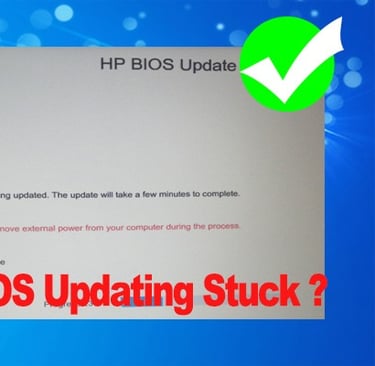
One of the most concerning risks of a BIOS update is the possibility of the laptop becoming unresponsive or “stuck” during the process. This scenario can leave the device inoperable, and recovering from such a state can be particularly challenging. If the update is interrupted—due to power failure, for instance—the laptop may fail to boot, displaying a blank screen or hanging during the startup sequence. These risks underscore the importance of thoroughly understanding the procedures and implications before attempting a BIOS update. With the right preparation and awareness, users can weigh the advantages against the potential for significant disruptions to their laptop's functionality.
Initial Troubleshooting Steps
When your laptop becomes stuck during a BIOS update, it can be a distressing situation. However, taking immediate action with the right approach can prevent further complications. The first step is to ensure that your laptop is receiving power. Check the power connection, as a disruption in power could lead to the BIOS update freezing. If the laptop is plugged in and the power light is on, this is a good indication that power issues are not the problem.
Next, it is important to allow a reasonable amount of time for the update to complete. BIOS updates can take several minutes, and interrupting the process prematurely may cause additional complications. If you have waited for a substantial period—typically at least 20-30 minutes—and the laptop remains unresponsive, you can then consider moving to the next step.
At this juncture, the safest course of action is to attempt a soft reboot of the system, which may help in recovering from the stuck status. To do this, you can press and hold the power button for about 10 seconds until the laptop turns off. Wait a moment, then press the power button again to restart the laptop. Be cautious not to perform a forced shutdown unless absolutely necessary, as this can lead to permanent damage or data loss.
It is crucial to refrain from disassembling the laptop at this stage. Tampering with internal components without the necessary expertise may void warranties and exacerbate the issue. Instead, focus on these preliminary troubleshooting steps, as they are essential for any successful recovery from a BIOS update stuck situation. Remaining calm and following these guidelines can greatly enhance your chances of restoring your laptop effectively.
Advanced Recovery Methods
When a BIOS update becomes stuck, advanced recovery methods can help restore functionality to your laptop. These techniques may vary depending on the make and model of the device but generally include resetting the BIOS through jumpers, battery removal, using recovery disks or USB drives, and accessing manufacturer-specific recovery options.
One common method is to reset the BIOS using jumpers. To perform this, first, ensure the laptop is turned off and unplugged. Open the laptop case to locate the motherboard. Search for the BIOS jumper, typically labeled as CLRTC, CLR, or similar. Move the jumper to the reset position, wait for a few seconds, and then return it to its original position. Reassemble the laptop and power it on; this may restore default BIOS settings and resolve the update issue.
An alternative approach involves removing the CMOS battery. This component retains BIOS settings, so its removal can reset these configurations. Again, start by powering off and disconnecting the laptop. Access the motherboard, carefully remove the CMOS battery, and wait for about five to ten minutes. Reinsert the battery, close the case, and power the laptop on. This step often clears any corrupted settings that could be causing the BIOS to fail during the update.
Using recovery disks or USB drives can also be effective. If you have a recovery disk for your operating system, insert it into the appropriate drive. Boot the laptop and follow the on-screen prompts to initiate recovery options. If you prefer USB drives, create a bootable USB using tools like Rufus and your operating system's ISO file. Insert the USB, adjust the boot order in BIOS to prioritize USB, and proceed with the recovery steps provided.
Lastly, many laptop manufacturers offer specific recovery options that may be accessed through key combinations during startup. Refer to your manufacturer's documentation for precise instructions on utilizing these options, as they may vary significantly between brands.
Seeking Professional Help and Preventative Measures
In certain situations, when a laptop is stuck due to a BIOS update issue, seeking professional help may be the most prudent course of action. Users should consider enlisting the assistance of a qualified technician if they lack experience in troubleshooting BIOS problems or if their attempts at recovery have been unsuccessful. Additionally, if the laptop emits unusual sounds or displays error messages beyond simple BIOS issues, it may indicate underlying hardware problems requiring expert attention.
When choosing a repair service, it is advisable to conduct thorough research. Look for service providers with proven expertise in BIOS recoveries and read customer reviews to gauge their reputation. It's essential to inquire about the qualifications of the technicians and to check if they offer guarantees on their repairs. Before visiting the repair shop, gather relevant information, such as the laptop's make and model, the details of the BIOS update attempted, and any error codes encountered. This information will assist the technician in diagnosing the problem more efficiently.
To minimize the risk of encountering BIOS update issues in the future, users can adopt several preventative measures. Creating regular backups is essential; this ensures that important data is preserved, allowing for easier recovery in case of failures. Additionally, using a reliable power source during updates can prevent interruptions that may corrupt the BIOS. It is also advisable to thoroughly understand the update process; users should read all instructions and ensure compatibility with their system before proceeding with an update. Keeping the laptop updated with the latest firmware from the manufacturer's website can also enhance stability, reducing the likelihood of similar issues arising.
EasyHacks.Tech
Daily IT Support Blogs & Insights
© 2025 EasyHacks.Tech | All Rights Reserved